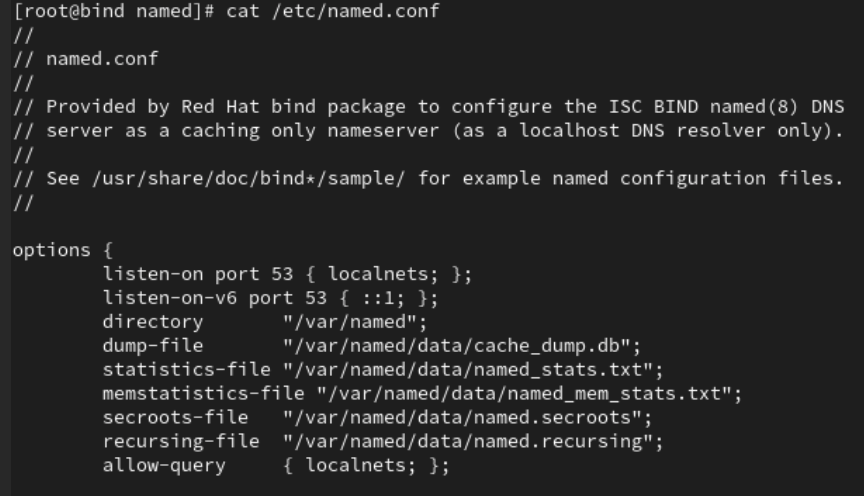
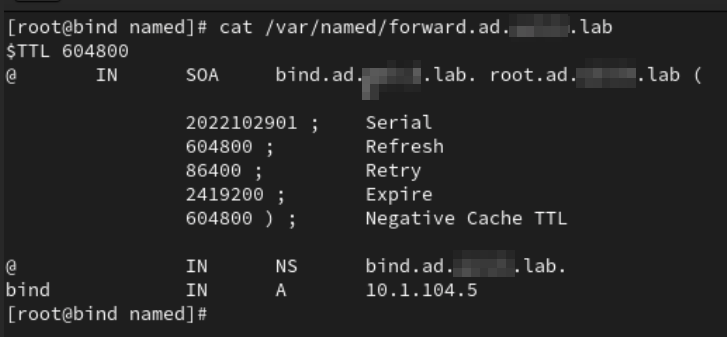
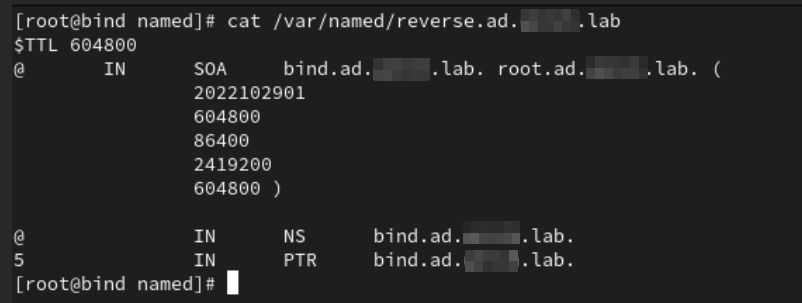
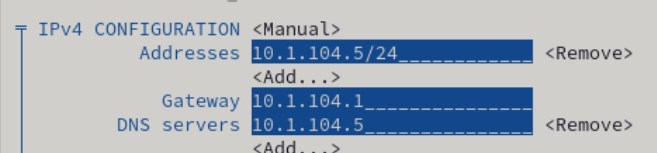
This blog takes over from the last blog on setting up Bind9. If you haven’t already done so follow the instructions on the previous blog before following this blog.
https://paularquette.com/setting-up-bind9-dns-server-on-rhel-9-for-a-brand-new-active-directory-domain-controller/
The next steps that are needed to get GSS-TSIG working is to do the following:
Install krb5-workstation (On Bind Server)
dnf install krb5-workstationModify /etc/krb5.conf
[libdefaults]
default_realm = AD.TEST.LAB #UnComment
[realms]
AD.TEST.LAB = {
kdc = ad.test.lab
admin_server = ad.test.lab
}
[domain realm]
.ad.test.lab = AD.TEST.LAB
ad.test.lab = AD.TEST.LAB
Create User (On Domain Controller)
Create user account:
User Logon Name Needs To Match Server Name
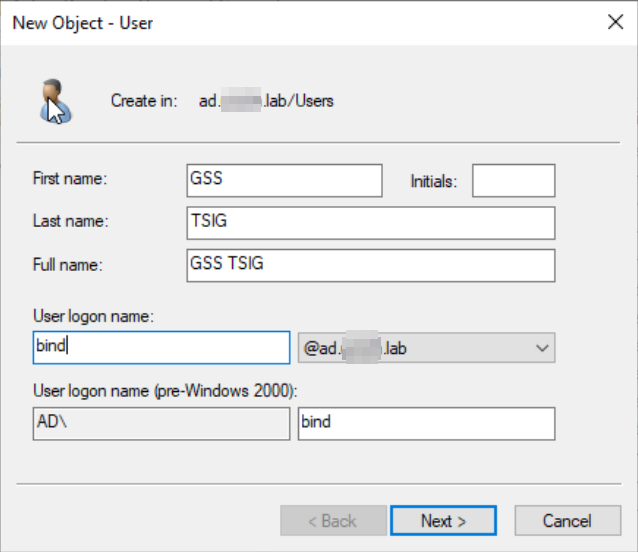
Check Password Never Expires
Make sure to check the box for “This account supports Kerberos AES 256bit encryption”
Create KeyTab (On Domain Controller) (Admin Command Prompt)
ktpass -princ DNS/[email protected] -mapuser [email protected] -pass Temp1234 -out C:\Temp\bind.keytab -ptype KRB5_NT_PRINCIPAL -crypto AES256-SHA1
Copy bind.keytab to RHEL Bind Server
Copy to /tmp
chown named:named bind.keytab
chmod 400 bind.keytab
mv /tmp/bind.keytab /etc
Test kinit
kinit -k -t /etc/bind.keytab DNS/[email protected]
klist
Update /etc/named.conf
Add under options:
tkey-gssapi-keytab “/etc/bind.keytab”;
forwarders { 8.8.8.8; 8.8.4.4; };
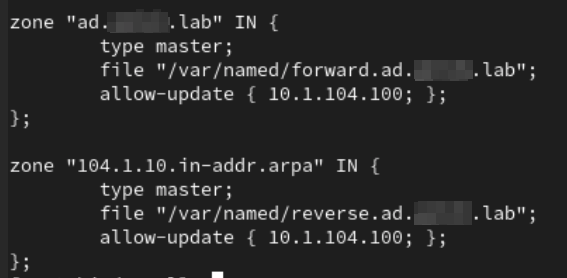
Update /etc/named.rfc1912.conf
Comment Out allow-update lines
In Forward Zone Add:
update-policy {
grant * subdomain ad.test.lab. ANY;
};
In Reverse Zone Add:
update-policy {
grant * subdomain 104.1.10.in-addr.arpa. PTR;
};
Fix SELinux
/sbin/restorecon -v /etc/bind.keytab
Force Updates
Restart-Service netlogon (Will Force the DC DNS Entries)
ipconfig /registerdns (Will force A and PTR records)